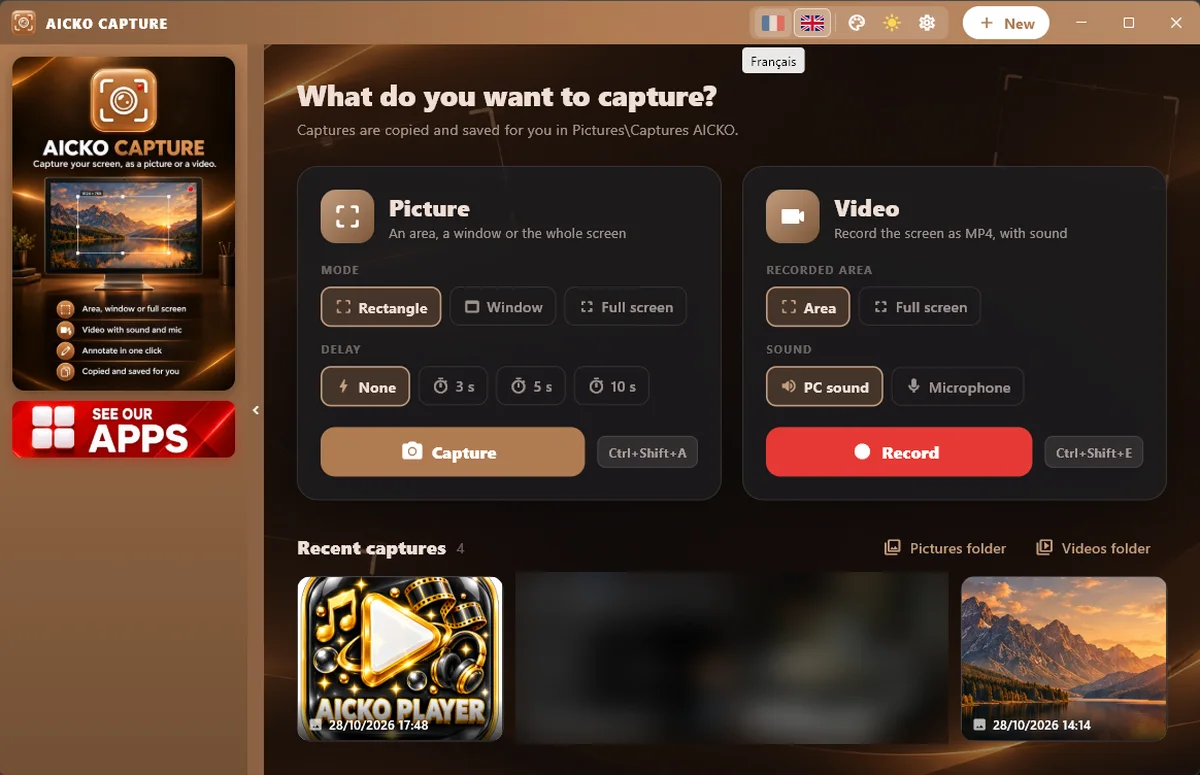
AICKO CAPTURE is a free screen recorder for Windows 10 and 11 that takes screenshots and records MP4 videos. A built-in editor lets you annotate, highlight and crop the result.
It aims to be simple. You choose an area of the screen, press record or capture, and your image or video is ready to share in a lesson, a bug report or a step-by-step guide. Nothing else has to be installed to get started.

Get AICKO CAPTURE
At a glance
- Platform: Windows 10 and 11, through the Microsoft Store
- Price: free
- Capture: image or MP4 video of an exact area
- Sound: computer sound and microphone
- Editor: annotate, highlight, crop
Getting started in four steps
- Install AICKO CAPTURE on Windows 10 or 11, using the Microsoft Store.
- Choose what to capture: an image or a video.
- Select the exact area of the screen. For a video, a red frame surrounds the area and a bar shows REC and a timer.
- Stop the recording, then edit or save the result, copy it to the clipboard or use Save as.
What the free screen recorder offers
- Screenshots of an exact area, saved as PNG or JPG or copied to the clipboard.
- Video recording in MP4, up to 30 frames per second in full HD on a recent computer.
- Recording of the sound of the computer and of the microphone, so you can comment as you work.
- Pause and resume during a recording.
- An editor to annotate, highlight and crop your images.
- A keyboard shortcut to start a capture quickly.
Why it suits science teaching and study
Many science tasks happen on a screen: running a simulation, plotting data in a spreadsheet, solving a problem step by step in a program. A short recording with your voice explains better than a paragraph. A pupil can show a teacher exactly where a calculation went wrong, and a teacher can prepare a three-minute video that explains how to use a simulator before a practical session.
The program does the technical work for you. The capture is exact, the red frame shows what is being recorded, and the timer tells you how long the clip is. If your computer cannot use the fastest method, it falls back on other recording methods, so the video still works.
Annotating images
For graphs and diagrams, a screenshot with an arrow and a highlighted value is clearer than a full page of text. The editor lets you crop away the unnecessary part so that the figure stays focused. Keep one idea per image and add a short label stating the quantity and the unit.
Using it with our virtual lab
Open the virtual lab, perform an experiment and record it. You get a replayable protocol that you can attach to your report. Pair it with the science books to check your result against a model answer.
Teachers can combine a recording with a worksheet from our site: record the solution of one problem, step by step, and give pupils the clip together with the printed sheet. Pupils can do the reverse and record a short explanation to prove they understood a method.
Short clips are easier to share and to review.
Tips
- Close notifications before recording, so private messages do not appear on screen.
- Write a short script of three or four sentences first.
- Record in short clips, using the pause function, rather than one long take.
Frequently asked questions
Is there a free screen recorder for Windows that saves MP4?
Yes. AICKO CAPTURE is free for Windows 10 and 11. It records an area of the screen as an MP4 video, with computer sound and microphone, and it also takes screenshots as images.
Can I capture only part of the screen?
Yes. You select the exact area to capture. During a video recording, a red frame surrounds that area, and a bar above it shows the recording status and the elapsed time.
Can I edit a screenshot after capturing it?
Yes. A built-in editor lets you annotate, highlight and crop the image. You can also copy the result to the clipboard or use Save as to choose the folder and the format.
Can I pause a video recording?
Yes. You can pause and resume a recording, which is handy when you need to prepare the next step of a demonstration. The parts are joined into a single video when you stop.
